
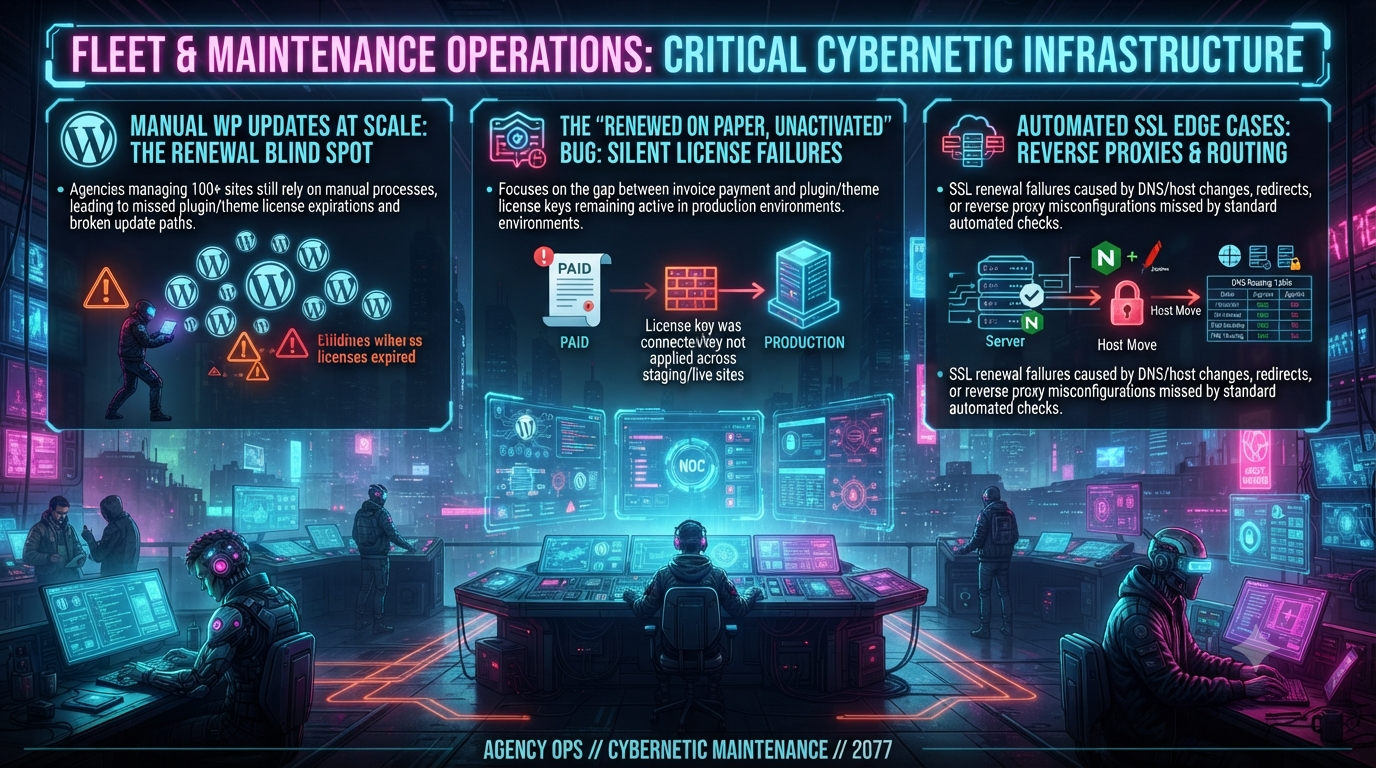
Managing 100 or more websites is an operational discipline, not just a technical checklist. Informal habits that felt “good enough” at ten sites start creating systemic risk as a digital agency or internal web team grows. A missed plugin renewal, a staging site holding a production license seat, or a reverse proxy masking an expiring TLS certificate rarely causes a dramatic failure on day one. These issues compound in the background until an urgent patch fails, a checkout breaks, or a browser throws a security warning during a campaign launch.
Strong fleet and maintenance operations treat every site in a portfolio as part of a governed system. This guide covers three high-impact failure points: manual WordPress updates at scale, plugin and theme license failures that go unnoticed, and SSL monitoring edge cases. It pairs each with workflows that close the gap. The details reflect vendor documentation and industry changes as of late November 2026.
1. Manual WordPress Updates at Scale: When “Good Enough” Turns Into a Blind Spot
Many agencies managing 100+ WordPress sites still rely on manual logins, spreadsheet trackers, or ad-hoc maintenance windows. Clicking “Update Now” in wp-admin feels careful and hands-on. Across a large fleet, though, manual workflows break down under fatigue, inconsistent client access, and fragmented visibility.
The stakes are rising. Patchstack’s State of WordPress Security in 2026 report counted 11,334 new vulnerabilities across the WordPress ecosystem in 2025, a 42% increase over 2024. About 91% were in plugins and 9% in themes, with only a handful in WordPress core. The same report puts the weighted median time to first mass exploitation at five hours. Patch latency is now a measurable business risk, not a housekeeping detail.
Core releases matter too. WordPress shipped 7.1.5 on November 18, 2026 as a security release. Its notes list fixes including SQL injection issues and an unauthenticated privilege escalation that could lead to remote code execution, and they recommend updating immediately. Sites that support automatic background updates start the update on their own. The security fixes are also being backported to older branches through 4.7, but WordPress states that only the most recent version is actively supported. On a mixed fleet, that means some sites patch themselves, some wait on you, and some sit on branches that get less attention.
Why Manual Fleet Updates Create Blind Spots
When updates happen site by site without a centralized inventory, teams miss signals that sit one layer beneath the update button:
- A mixed auto-update landscape: WordPress applies minor core releases (maintenance and security) automatically by default, while major core releases and plugin and theme updates are opt-in. Without an inventory of which sites have which settings, you can’t tell which sites patch themselves.
- License-gated updates: Core and WordPress.org repository plugins update regardless of your commercial licenses. Premium plugins that use vendor update servers generally need an active license on that specific site. A lapsed or unapplied license can leave a premium plugin behind while everything else looks current.
- Dashboards that show update availability, not entitlement: MainWP’s documentation says it doesn’t provide premium licenses or bypass vendor requirements. An update can appear in the dashboard while the vendor still refuses the download because the child site’s license or account connection is inactive.
- Rollbacks that catch only fatal errors: Since WordPress 6.6, a failed plugin auto-update can be rolled back automatically. WordPress does this by running a loopback request to the homepage to detect PHP fatal errors, and it emails the site’s admin address when a rollback happens. That is a useful safety net. But a non-fatal regression, such as a broken form, a failing checkout, or a layout problem on an inner template, still needs your own verification.
- Inconsistent coverage: Without a single queue or audit log, high-traffic sites and low-maintenance client sites slip through the cracks, especially when staff rotate or urgent requests interrupt scheduled maintenance blocks.
Moving From Ad-Hoc Clicking to Governed Fleet Operations
Replacing manual site-by-site updates does not mean switching on blind auto-updates everywhere. Mature agencies standardize how updates are staged, queued, verified, and audited:
- Centralize fleet inventory and update queues. Connect every site to a unified management layer or standardized deployment pipeline. Pending core, theme, and plugin updates should be visible in one place, along with each site’s auto-update settings.
- Separate policy from execution. Define rules for minor versus major releases, test high-risk or e-commerce updates in staging first, and enforce a consistent sequence: back up first, update second, clear caches and verify health third, log outcomes last.
- Track license status alongside versions. Record the license’s expiration date, the vendor account that owns it, and the domain it’s activated on. Flag a renewal lapse well before update delivery stops.
- Standardize post-update checks. Verify HTTP status, critical templates, forms, and key API or checkout endpoints after each maintenance run, so regressions surface before a client ticket does.
| Maintenance Approach | Visibility Across Many Sites | License & Renewal Tracking | Verification & Audit Trail | Best Fit |
|---|---|---|---|---|
| Manual `wp-admin` updates | Fragmented; relies on memory or spreadsheets | Often missed until updates stop appearing | Minimal unless manually documented | Very small portfolios or isolated one-off fixes |
| Unmonitored auto-updates | Low; changes happen without centralized review | Premium plugins with lapsed licenses still can’t update | Rollback covers PHP fatal errors, not subtler regressions | Low-risk sites with simple stacks and reliable backups |
| Centralized, verified fleet workflow | High; single queue and status view | Tracked proactively with clear ownership | Repeatable backup, check, and reporting loop | Agencies and teams managing many client sites |
2. “Renewed on Paper, Not Applied in Production”: Catching Plugin License Failures
One of the most frustrating bugs in WordPress maintenance happens when billing succeeds but production doesn’t reflect it. Someone pays the renewal invoice, so the license looks active on paper. Yet the live site is missing the key, holds a stale one, or can’t reach the vendor’s licensing server.
What an Expired or Missing License Actually Does Varies by Vendor
Don’t assume a lapse means a dead plugin, or that it means nothing. Vendor behavior differs, so check each one:
| Vendor | What vendor documentation says about a lapsed or missing license |
|---|---|
| Gravity Forms | The plugin and its first-party add-ons remain installed and keep operating, but the site stops receiving updates (including bug fixes and security updates) and technical support. File downloads from the vendor are also blocked, and the admin shows a reminder of the expired license. |
| ACF PRO | With an expired license still activated, you can edit existing PRO fields, blocks, and options pages but can’t create new ones, and front-end output is unaffected. With no license activated at all, you can neither edit existing PRO items nor create new ones. |
In both cases the warning mostly lives in wp-admin, where a fleet team rarely looks. Gravity Forms also points out that changes in WordPress or third-party integrations can eventually break an installed version that can no longer be updated. A plugin that “still works” can become a liability.
How the Gap Between Billing and Production Opens
In commercial WordPress ecosystems, paying a renewal invoice and having an active entitlement applied on a specific site are separate events. Documented failure modes include:
- Activation counting and staging seats: Elementor’s documentation says a Pro license normally needs an activation for every WordPress installation, including development sites, subdomains, and subdirectories. It exempts a defined list of staging patterns, such as
.dev,.local,.test, and.stagingdomains,dev.*andstage.*subdomains, and certain hosts’ staging URLs. A staging site on a non-matching domain, or a/stagingsubfolder on the production domain, counts against your seats. In that case the vendor suggests moving the license temporarily or using another one. Other vendors count differently, so check each vendor’s rules. - Domain changes and mismatches: Elementor documents a “license mismatch” error when the domain on the vendor account doesn’t match the site trying to activate. Its fix is to deactivate the old activation in the vendor account and reconnect. Migrations, domain moves, and clones are the usual triggers.
- Firewalls and outbound blocks: Elementor’s troubleshooting guidance lists firewall and IP-blocking issues as causes of license-activation 403 errors. It also advises temporarily disabling security plugins and CDN WAF rules that may block outgoing requests when updates or activation fail. A valid key can look invalid if the site can’t reach the licensing endpoint.
- Dashboards that can’t see entitlement: As noted above, a central dashboard may show an update as available while the vendor refuses the download for an inactive license.
How to Catch and Prevent License Failures
Treat license state as a verifiable technical check, not an accounting receipt:
- Audit activations, not just invoices. Periodically reconcile each vendor account’s activated-domain list and seat count against your live production URLs and staging environments.
- Reclaim staging seats and standardize migrations. Deactivate temporary activations when work moves to production. Keep a post-migration checklist that confirms the key, the activated domain, and outbound reachability to the vendor.
- Check connectivity before blaming billing. When a valid key fails to activate, review firewall logs, WAF rules, and server egress before assuming the billing record is wrong.
- Check the update screen on the site itself. Where a dashboard shows nothing pending, open the child site’s own Updates screen and the plugin’s license page to confirm the vendor is actually serving updates.
- Put license health in recurring reviews. Make activation status, vendor-account ownership, and upcoming renewal dates a standard line item in monthly or quarterly audits, so billing and engineering stay aligned.
3. Why Automated SSL Checks Still Miss Edge Cases (Reverse Proxies, Redirects, and Host Moves)
Automated TLS monitoring is essential, yet teams still get blindsided by certificate problems. A basic check typically connects to one hostname and port on a schedule. That works for a single-server setup but struggles when traffic passes through layered infrastructure.
Two recent changes raise the stakes:
- Certificate lifetimes are shrinking on a fixed schedule. Under CA/Browser Forum Ballot SC-081v3, the maximum validity of publicly trusted TLS certificates fell from 398 to 200 days on March 15, 2026. It drops to 100 days on March 15, 2027, which is less than four months away, and to 47 days on March 15, 2029. The window for reusing completed domain validation shrinks on the same schedule, from 200 days now to 100 days in 2027 and 10 days in 2029. Private PKI certificates are excluded.
- Free-CA reminder emails are gone. Let’s Encrypt ended its expiration notification emails on June 4, 2025 and deleted the associated email addresses. It also plans to cut its default certificate lifetime to 64 days on February 10, 2027 and to 45 days on February 16, 2028. Its announcement warns that renewing at a hardcoded interval such as 60 days will no longer be sufficient. It recommends renewing roughly two-thirds of the way through a certificate’s lifetime, or using ACME Renewal Information (ARI).
More frequent renewals mean more chances for a quiet failure, and that failure now comes without a reminder email.
Edge Cases That Fool Basic SSL Monitoring
- Edge and origin certificates are separate. When a CDN or reverse proxy such as Cloudflare, Nginx, Traefik, or HAProxy terminates TLS at the edge, visitors see the edge certificate, and a check against it can look healthy. A second certificate secures the connection from the proxy to your origin. On Cloudflare, if the SSL/TLS mode is Full (strict) and the origin certificate is expired, untrusted, or doesn’t match the hostname, visitors get Error 526 even though the edge certificate is valid. Whether an origin expiry takes the site down depends on that encryption mode, so know which mode each site uses.
- Redirects and port 80 affect HTTP-01 renewals. Per Let’s Encrypt’s challenge documentation, the HTTP-01 challenge runs only on port 80. Their validation follows up to 10 redirects and accepts only
http:orhttps:targets on ports 80 or 443. Closing port 80 after a cutover, or redirecting to a non-standard port, can break renewals. A monitor that only tests the canonical HTTPS homepage won’t notice until the certificate expires. - Wildcards and DNS changes. Wildcard certificates need the DNS-01 challenge, which proves control through a TXT record at
_acme-challenge. Automating it requires API access at your DNS provider. Moving DNS to a new provider without migrating that automation can break renewals, even if the site itself keeps working. - Secondary hostnames and legacy domains. Redirect-only domains,
wwwand non-wwwvariants, regional subdomains, asset hosts, API endpoints, and staging hostnames can each have their own certificate, issuance path, and proxy rules. Monitoring only the apex domain leaves them exposed. - A green check from a single page. A monitor that confirms the homepage loads over HTTPS doesn’t prove that renewal automation will succeed next month. It doesn’t prove that every live hostname presents a valid certificate, or that the validation path still works after infrastructure changes.
Building More Resilient SSL & Routing Verification
Pair automated renewal with checks that reflect how real traffic reaches each property:
- Inventory every active hostname, not just the apex domain. Include
www, key subdomains, redirect-only domains, and aliases that serve live traffic. Certificate Transparency logs, searchable through public tools such as crt.sh, can reveal hostnames that already have certificates issued for your domains. - Record how each certificate is issued and renewed. Note the issuer, challenge method (HTTP-01, DNS-01, or other), where the renewal client runs, and which account or API credential it uses.
- Validate the full redirect and proxy path. Confirm that HTTP-to-HTTPS and host redirects resolve cleanly without loops. Verify TLS health at both the edge and the origin, and record each CDN’s encryption mode.
- Run targeted checks after DNS and host changes. Whenever you migrate hosts, change DNS providers, or modify proxy or CDN rules, re-verify certificate issuance, renewal readiness, port 80 reachability if HTTP-01 is in use, and live routing before closing the change.
- Alert well ahead of expiration. With 200-day certificates now, 100-day certificates from March 2027, and 64- and 45-day Let’s Encrypt certificates coming, set lead times that leave room to diagnose DNS, proxy, or challenge failures. Don’t rely on a CA’s reminder emails.
Putting It All Together in Daily Fleet Operations
Manual WordPress updates, license gaps, and SSL edge cases share a common root cause: assumed state. You assume an update succeeded because the button was clicked. You assume a license is active because an invoice was paid, or that TLS is healthy because one green check passed on the homepage.
A practical starting point is a fleet register with one row per site. Each row should record WordPress and plugin versions, auto-update settings, each premium plugin’s license owner, activated domain, and renewal date, plus every live hostname, its certificate issuer, renewal method, and expiry. When you replace assumptions with clear ownership, standardized backup-and-verification workflows, license-to-site reconciliation, and routing-aware SSL checks, fleet maintenance stops being reactive firefighting and becomes predictable infrastructure operations.